
Customer portal overview
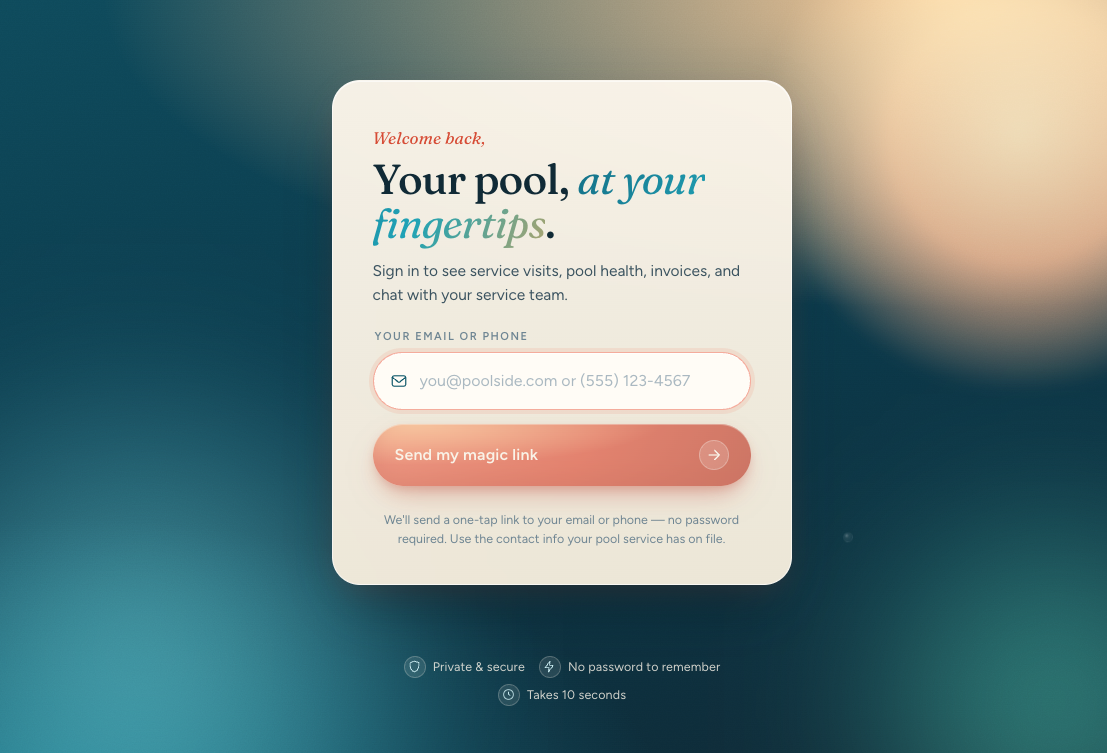
Your customer portal keeps everything about your pool service in one place. After signing in with the magic link sent to your email or phone, you will find six tabs: Health, Work Orders, History, Messages, Billing, and Account.
Health
The Health tab is the first page you see when you sign in. It shows what is coming next: your Next service date, your Balance or Balance due, and quick action links to Send Message, Pay bill, History, and Work orders. The page highlights Needs your attention when a work order or quote is waiting, shows your Last visit and Other recent visits, lists What's ahead, and displays Equipment with condition tags like Excellent, Good, Fair, Worn, or Replace. If you have multiple pools, they appear as static Bodies of water labels rather than a selector, and the dashboard shows service information for the whole property.
Work Orders
Click the Work Orders tab to see Anything that needs you. This is where repairs, recommendations, and sign-offs live. You can filter the list using All, Needs action, Active, and Done. Each work order shows a status such as Quoted, Approved, Scheduled, In progress, Completed, Invoiced, Cancelled, Declined, or On hold. When a quote is waiting, a Review this quote button lets you open the proposal and approve or decline it.
History
The History tab lists your Service History. You can browse past service visits, see technician notes, photos, and videos, and use Previous and Next to move through pages. The subtitle shows either how many visits are on record or Your past service visits. You can rate a completed visit from the History tab — see Rate a service visit.
Messages
Click the Messages tab to chat with your pool service team in a single shared conversation thread. You can write messages, attach photos or PDFs, and remove attachments before sending. Your team can reply with updates, reminders, and requests.
Billing
The Billing tab is where Recent invoices, Payment plans, and Recent payments live. You can read more about payment plans in Payment plans. You will also find your Payment method card and the Autopay section. An invoice can show Pay Now when it is due, and status badges such as Paid, Due, Processing, Overdue, On autopay, or On hold help you track what is happening.
Account
The Account tab shows Your account details, Your pool or Your pools, and Contact info. From here you can add or update your Phone, Alternate phone, and Preferred contact (Email or Text message). You can also manage the SMS notifications checkbox, see your Settings summary, and Sign out when you are done.
You sign in with a magic link — no password needed. The portal sends the link to the email or phone number your pool service company has on file. If you are having trouble signing in, see Sign in to your portal.